See scripts below:
2008-11-15
Launch TightVNC using the Computer Name - or - How to Get IP from Computer Name in MS-DOS cmd.exe batch file
See scripts below:

2008-11-10
TightVNC is a great Open Source alternative to Remote Desktop Connection!
In a previous post we've seen that Remote Desktop Connection (embeded with Windows XP PRO) is a great tool that allows you to work on a distant computer and to use its graphical environment.
But what do I do if I only have an XP Home Edition? You might consider using TightVNC then! Besides, even if you have the license for Remote Desktop Connection you might consider using TightVNC anyway because... it rocks!
1/ Install the VNC server
Visit http://www.tightvnc.com.
2/ Start the VNC service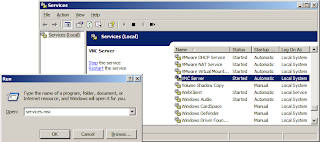
3/ Update the Firewall
Authorize the server executable and open ports 5800 and 5900: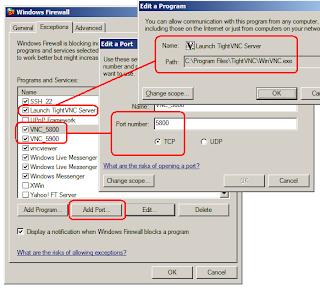
4/ Get the IP of the Target
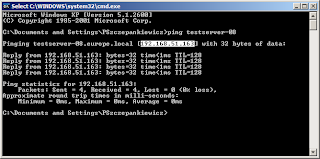
Ping the server from your other computer (the client) and read its IP.
5/ Connect to the Target using a VNC Viewer
Connect to the remote computer using its IP: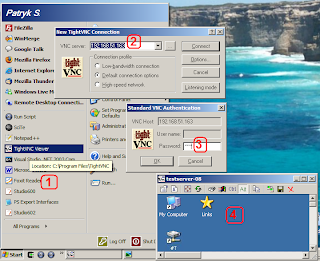
6/ VNC Security considerations
There is one fundamental difference between TightVNC and Remote Desktop Connection: the remote computer's monitor will display an open session when you log using TightVNC (eg. you will see the mouse move, etc.) whereas it will display a "locked computer" when you use Remote Desktop Connection.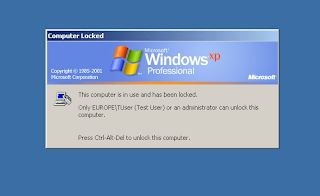
From a security point of view, you need to ask yourself if it is a problem having your session left open on the remote computer. Who are the people who have physical access to this computer?
On the other hand, having the session open is very convenient if the remote computer performs Graphical Automation: for example, AutoIT doesn't work correctly if the computer is locked! In which case TightVNC might become a life saver!
Last but not least, you can combine both behaviors by using a Virtual Machine on top of the physical one: the physical machine can then be locked and the data and processes running on the Virtual Machine will be protected from the outer world while you are using TightVNC!
But what do I do if I only have an XP Home Edition? You might consider using TightVNC then! Besides, even if you have the license for Remote Desktop Connection you might consider using TightVNC anyway because... it rocks!
1/ Install the VNC server
Visit http://www.tightvnc.com.
2/ Start the VNC service

3/ Update the Firewall
Authorize the server executable and open ports 5800 and 5900:

4/ Get the IP of the Target
Ping the server from your other computer (the client) and read its IP.

5/ Connect to the Target using a VNC Viewer
Connect to the remote computer using its IP:

6/ VNC Security considerations
There is one fundamental difference between TightVNC and Remote Desktop Connection: the remote computer's monitor will display an open session when you log using TightVNC (eg. you will see the mouse move, etc.) whereas it will display a "locked computer" when you use Remote Desktop Connection.

From a security point of view, you need to ask yourself if it is a problem having your session left open on the remote computer. Who are the people who have physical access to this computer?
On the other hand, having the session open is very convenient if the remote computer performs Graphical Automation: for example, AutoIT doesn't work correctly if the computer is locked! In which case TightVNC might become a life saver!
Last but not least, you can combine both behaviors by using a Virtual Machine on top of the physical one: the physical machine can then be locked and the data and processes running on the Virtual Machine will be protected from the outer world while you are using TightVNC!
2008-10-05
Work around AutoIT stdin limitation
The fastest way to implement a small script and to process a file (or a chunk of data) is to use the standard input rather than file-handles.
1/ It is easier to redirect a file instead of providing parameters to a program.
2/ When you use redirections, the operating system works for you: it opens the file and feeds the program with its content.
But there is one problem that makes this a bit harder: AutoIT 'ConsoleRead' doesn't handle input bigger than '65535' characters. So here is a little workaround: use the function 'StdinRead' below instead of 'ConsoleRead':
NOTE: For "ConsoleWrite" to work as expected (redirecting output to stdout), you need to compile the script using the "/console" switch.
1/ It is easier to redirect a file instead of providing parameters to a program.
2/ When you use redirections, the operating system works for you: it opens the file and feeds the program with its content.
C:\> AutoIt3.exe DiffPrettyfier.au3 < MyInput.txt > MyOutput.txt
The content of the script is straight forward:
$myInput = ConsoleRead(); do something here; (...)ConsoleWrite($myOutput)
But there is one problem that makes this a bit harder: AutoIT 'ConsoleRead' doesn't handle input bigger than '65535' characters. So here is a little workaround: use the function 'StdinRead' below instead of 'ConsoleRead':
;-----------------------------------------------------------------; Name .........: StdinRead; Description ..: Wrapper for ConsoleRead because it doesn't; handle big files; Warning ......: This is a workaround but it has limitations too,; I used a big file to test this function but it; might fail on a VERY big file (eg. if the file; contains 2 147 483 647 characters); original big file tested: 18 030 950; biggest string size allowed: 2 147 483 647; Parameters ...: n/a; Return .......: String read on STDIN or empty String "" if; nothing found on STDIN;-----------------------------------------------------------------Func StdinRead()Const $MAX_BUFFER = 65535$eofReached = False$fileContent = ""While Not $eofReached$buffer = ConsoleRead($MAX_BUFFER)If @error Or $buffer = "" Then $eofReached = True$fileContent &= $bufferWEndReturn $fileContentEndFunc ;==>StdinRead
NOTE: For "ConsoleWrite" to work as expected (redirecting output to stdout), you need to compile the script using the "/console" switch.
2008-09-22
Automatic logon
There are three ways to get this done.
First, you can edit the registry. Point regedit to the section called "HKEY_LOCAL_MACHINE\SOFTWARE\Microsoft\Windows NT\CurrentVersion\Winlogon" and edit the following string-keys:
Alternatively, you can create a script called "Winlogon MyUserName.reg":
Finally you can download "TweakUI" (Power Toys for Windows XP) and use this tool instead.

First, you can edit the registry. Point regedit to the section called "HKEY_LOCAL_MACHINE\SOFTWARE\Microsoft\Windows NT\CurrentVersion\Winlogon" and edit the following string-keys:
- DefaultUser
- DefaultPassword
- DefaultDomain
- AutoAdminLogon (set to "1")
Alternatively, you can create a script called "Winlogon MyUserName.reg":
Windows Registry Editor Version 5.00

[HKEY_LOCAL_MACHINE\SOFTWARE\Microsoft\Windows NT\CurrentVersion\Winlogon]
"DefaultUserName"="MyUserName"
"DefaultDomainName"="MYNETWORK"
"AutoAdminLogon"="1"
"DefaultPassword"="MyUserPassword"
Finally you can download "TweakUI" (Power Toys for Windows XP) and use this tool instead.

2008-06-16
Convert '%date%' into format 'yyyy-mm-dd'
The format returned by '%date%' is different between Windows 2000 (eg. 'Mon 16/06/2008') and Windows XP (eg. '16/06/2008').
The snippet below works on Windows XP:
but this one works on Windows 2000 too:
%date:~-4,4%-%date:~-7,2%-%date:~-10,2%
The snippet below works on Windows XP:
%date:~6,4%-%date:~3,2%-%date:~0,2%
but this one works on Windows 2000 too:
%date:~-4,4%-%date:~-7,2%-%date:~-10,2%
2008-04-04
Use another processor for heavy tasks... (Remote desktop connection)
Compiling can be a very annoying task: it takes ages and it uses all your CPU resources; it's especially true when your software project contains a few hundred thousands lines of code and that you have to perform a "Rebuild All" compilation.
Well, that was until today... because from now on, the "Rebuild All" doesn't run on my computer anymore... thanks to "Remote desktop connection"!
You can find this utility among the programs shipped with your Microsoft Windows XP PRO SP2 Operating System (and above):

Remote Desktop Connection allows you to connect to another computer using its address (IP or local network name):

If you want the other computer to work on your local data you may have to share your drive C:\

Now, assuming that your computer's name is "\\MyComputer", you can make the second computer work on your data; just map the network drive using "Explorer > Tools > Map network drive":

And here you go... you can have an other processor doing the heavy tasks for you:

Well, that was until today... because from now on, the "Rebuild All" doesn't run on my computer anymore... thanks to "Remote desktop connection"!
You can find this utility among the programs shipped with your Microsoft Windows XP PRO SP2 Operating System (and above):

Remote Desktop Connection allows you to connect to another computer using its address (IP or local network name):

If you want the other computer to work on your local data you may have to share your drive C:\
Warning: of course, you must trust your local network very very very much to do this! Or find another way...

Now, assuming that your computer's name is "\\MyComputer", you can make the second computer work on your data; just map the network drive using "Explorer > Tools > Map network drive":

And here you go... you can have an other processor doing the heavy tasks for you:

Subscribe to:
Posts (Atom)