Usually, when you close your RDP connection the remote computer locks the computer and therefore restricts access and use of your Desktop (COMPUTER LOCKED).
The solution is either :
1/ use VNC instead of RDP
2/ or run "@tscon.exe 1 /dest:console" to transfer your session from RDP to CONSOLE, this will "virtually" kick you out, but it will leave your user session open and your Desktop active on the remote computer.
WARNING: By definition, this solution (2/) is unlikely to work for multiple remote desktop sessions on a single computer at the same time, there can be only one console session and it is already in use.
C:\Users\Administrator2>tscon 2 /dest:console
Could not connect sessionID 2 to sessionname console, Error code 7045
Error [7045]:The requested session access is denied.
Showing posts with label AutoIt3. Show all posts
Showing posts with label AutoIt3. Show all posts
2016-02-10

2011-08-17
Emacs syntax highlighting for PHP and AutoIT
After installing Emacs from http://www.gnu.org/software/emacs/, copy those two files below to your "%AppData%\.emacs.d" directory:
- au3-mode.el from http://sourceforge.net/projects/au3-mode/
- and php-mode.el from http://php-mode.sourceforge.net/
Edit the "%AppData%\.emacs" file and add the following lines:
(global-font-lock-mode 1)(add-to-list 'load-path "~/.emacs.d")(require 'php-mode)(setq auto-mode-alist(append '(("\\.php$" . php-mode)("\\.module$" . php-mode))auto-mode-alist))(require 'au3-mode)(setq auto-mode-alist(append '(("\\.au2$" . au3-mode)("\\.au3$" . au3-mode))auto-mode-alist))
2008-11-10
TightVNC is a great Open Source alternative to Remote Desktop Connection!
In a previous post we've seen that Remote Desktop Connection (embeded with Windows XP PRO) is a great tool that allows you to work on a distant computer and to use its graphical environment.
But what do I do if I only have an XP Home Edition? You might consider using TightVNC then! Besides, even if you have the license for Remote Desktop Connection you might consider using TightVNC anyway because... it rocks!
1/ Install the VNC server
Visit http://www.tightvnc.com.
2/ Start the VNC service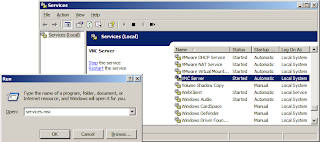
3/ Update the Firewall
Authorize the server executable and open ports 5800 and 5900: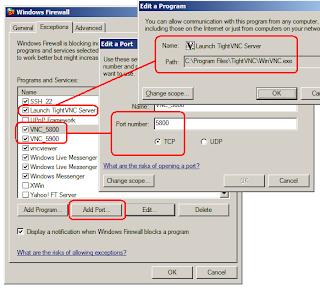
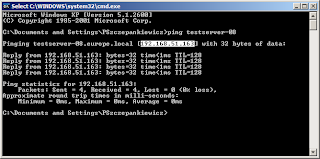
4/ Get the IP of the Target
Ping the server from your other computer (the client) and read its IP.
5/ Connect to the Target using a VNC Viewer
Connect to the remote computer using its IP: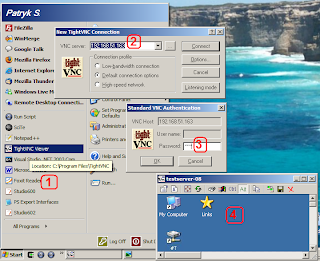
6/ VNC Security considerations
There is one fundamental difference between TightVNC and Remote Desktop Connection: the remote computer's monitor will display an open session when you log using TightVNC (eg. you will see the mouse move, etc.) whereas it will display a "locked computer" when you use Remote Desktop Connection.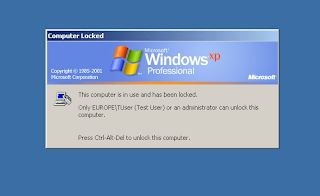
From a security point of view, you need to ask yourself if it is a problem having your session left open on the remote computer. Who are the people who have physical access to this computer?
On the other hand, having the session open is very convenient if the remote computer performs Graphical Automation: for example, AutoIT doesn't work correctly if the computer is locked! In which case TightVNC might become a life saver!
Last but not least, you can combine both behaviors by using a Virtual Machine on top of the physical one: the physical machine can then be locked and the data and processes running on the Virtual Machine will be protected from the outer world while you are using TightVNC!
But what do I do if I only have an XP Home Edition? You might consider using TightVNC then! Besides, even if you have the license for Remote Desktop Connection you might consider using TightVNC anyway because... it rocks!
1/ Install the VNC server
Visit http://www.tightvnc.com.
2/ Start the VNC service

3/ Update the Firewall
Authorize the server executable and open ports 5800 and 5900:

4/ Get the IP of the Target
Ping the server from your other computer (the client) and read its IP.

5/ Connect to the Target using a VNC Viewer
Connect to the remote computer using its IP:

6/ VNC Security considerations
There is one fundamental difference between TightVNC and Remote Desktop Connection: the remote computer's monitor will display an open session when you log using TightVNC (eg. you will see the mouse move, etc.) whereas it will display a "locked computer" when you use Remote Desktop Connection.

From a security point of view, you need to ask yourself if it is a problem having your session left open on the remote computer. Who are the people who have physical access to this computer?
On the other hand, having the session open is very convenient if the remote computer performs Graphical Automation: for example, AutoIT doesn't work correctly if the computer is locked! In which case TightVNC might become a life saver!
Last but not least, you can combine both behaviors by using a Virtual Machine on top of the physical one: the physical machine can then be locked and the data and processes running on the Virtual Machine will be protected from the outer world while you are using TightVNC!
2008-10-05
Work around AutoIT stdin limitation
The fastest way to implement a small script and to process a file (or a chunk of data) is to use the standard input rather than file-handles.
1/ It is easier to redirect a file instead of providing parameters to a program.
2/ When you use redirections, the operating system works for you: it opens the file and feeds the program with its content.
But there is one problem that makes this a bit harder: AutoIT 'ConsoleRead' doesn't handle input bigger than '65535' characters. So here is a little workaround: use the function 'StdinRead' below instead of 'ConsoleRead':
NOTE: For "ConsoleWrite" to work as expected (redirecting output to stdout), you need to compile the script using the "/console" switch.
1/ It is easier to redirect a file instead of providing parameters to a program.
2/ When you use redirections, the operating system works for you: it opens the file and feeds the program with its content.
C:\> AutoIt3.exe DiffPrettyfier.au3 < MyInput.txt > MyOutput.txt
The content of the script is straight forward:
$myInput = ConsoleRead(); do something here; (...)ConsoleWrite($myOutput)
But there is one problem that makes this a bit harder: AutoIT 'ConsoleRead' doesn't handle input bigger than '65535' characters. So here is a little workaround: use the function 'StdinRead' below instead of 'ConsoleRead':
;-----------------------------------------------------------------; Name .........: StdinRead; Description ..: Wrapper for ConsoleRead because it doesn't; handle big files; Warning ......: This is a workaround but it has limitations too,; I used a big file to test this function but it; might fail on a VERY big file (eg. if the file; contains 2 147 483 647 characters); original big file tested: 18 030 950; biggest string size allowed: 2 147 483 647; Parameters ...: n/a; Return .......: String read on STDIN or empty String "" if; nothing found on STDIN;-----------------------------------------------------------------Func StdinRead()Const $MAX_BUFFER = 65535$eofReached = False$fileContent = ""While Not $eofReached$buffer = ConsoleRead($MAX_BUFFER)If @error Or $buffer = "" Then $eofReached = True$fileContent &= $bufferWEndReturn $fileContentEndFunc ;==>StdinRead
NOTE: For "ConsoleWrite" to work as expected (redirecting output to stdout), you need to compile the script using the "/console" switch.
2008-01-01
BringBackFromTray: for MinimizeToTray extension users (Firefox or Thunderbird)


The first extension I installed on Firefox was MinimizeToTray. I love it.
Sadly, It's easy to minimize my prefered browser (Ctrl+Shift+M) but there is no keystroke to bring it back from the Tray: I though for a long time about implementing a global hook that would wait for the keyboard shortcut and activate the Firefox window.
My brand new Logitech keyboard provided a much easier solution! This keyboard has special buttons that can be configured to launch the program of my choice. So I wrote the program below (AutoIT language). Feel free to use it. But, as usual, take note that this program is provided without any guarantee:
Sadly, It's easy to minimize my prefered browser (Ctrl+Shift+M) but there is no keystroke to bring it back from the Tray: I though for a long time about implementing a global hook that would wait for the keyboard shortcut and activate the Firefox window.
My brand new Logitech keyboard provided a much easier solution! This keyboard has special buttons that can be configured to launch the program of my choice. So I wrote the program below (AutoIT language). Feel free to use it. But, as usual, take note that this program is provided without any guarantee:
; static variables
$program_name="Firefox"
$program_path=_
"C:\Program Files\Mozilla Firefox\firefox.exe"

; set AutoIT options
AutoItSetOption("WinTitleMatchMode", 2)

; Get state of the firefox window
; (eg. 21 minimize to tray =  1 + 4 + 16 )
; (eg. 23 minimize = 1 + 2 + 4 + 16 )
$state = WinGetState($program_name)

; not runing ?
; -> launch the program
If Not $state Then
 Run($program_path)
; not visible ?
; -> bring from the tray
ElseIf Not BitAND($state, 2) Then
 WinActivate($program_name)
; visible and active ?
; -> MinimizeToTray
ElseIf BitAND($state, 8) Then
 ControlSend ($program_name, "", ""_
 , "{SHIFTDOWN}{CTRLDOWN}m{CTRLUP}{SHIFTUP}")
; visible but not active ?
; -> activate
Else
 WinActivate($program_name)
 WinWaitActive($program_name)
EndIf
I recommend you have a look into this great tool called AutoIT: it is extremely useful and efficient in a day-to-day basis; and its syntax is very simple (Basic-like).
Subscribe to:
Posts (Atom)